

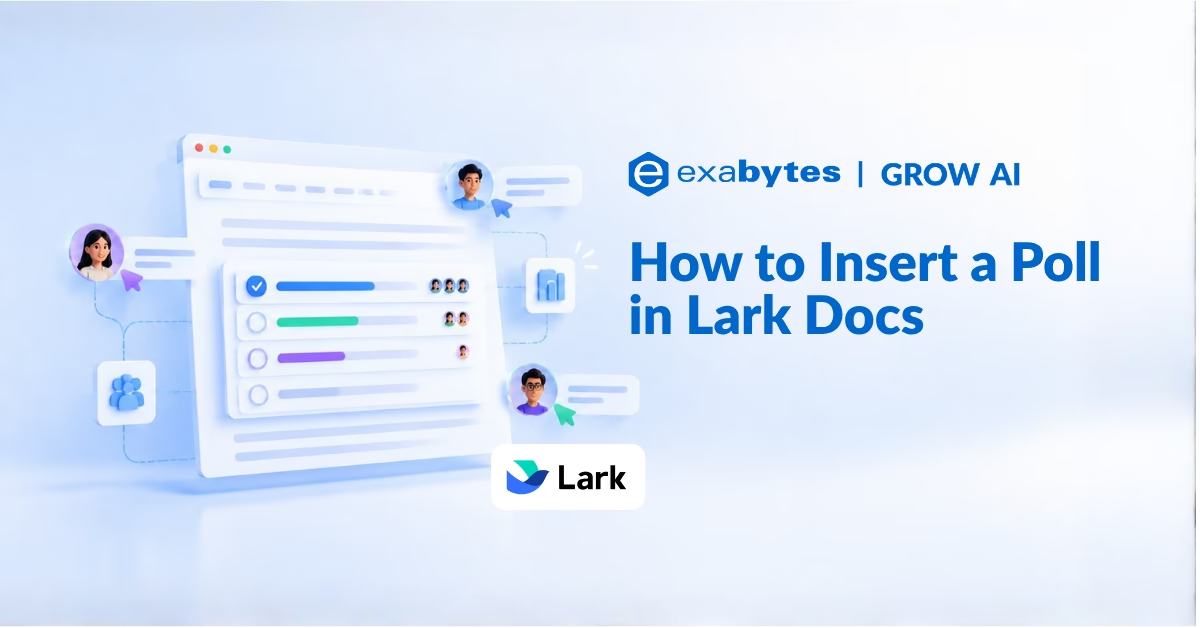
Need a quick answer from your team without leaving the document you are working on? Y
ou can insert a poll directly into a Lark Docs document, so colleagues can read the context and vote in the same place.
Polls can allow single or multiple choices, keep responses anonymous, and close at a deadline you set, with results updating in real time.
Note: On the Lark mobile app, you can participate in polls but you cannot insert polls while editing.
Step 1: Create a Poll
Open the document, then use either method below.
Method 1: Type /poll at the beginning of a line or after a space, then click Poll.

Method 2: Hover over the beginning of a blank line, click the + icon that appears on the left, and choose Poll from the menu.

Step 2: Set Up the Poll
Add a Title and Options
Enter a title and your options. Click Add option to add more.

Important: You cannot change the title or options once the poll is published.
Choose the Poll Settings
Turn on Keep responses anonymous to hide who voted for what, and Multiple to let respondents select more than one option.

Important: These settings cannot be changed once the poll is published.
Set a Deadline
Turn on Set deadline, choose a date and time, and click Save.

Step 3: Publish the Poll
Click Publish Poll, then Publish in the confirmation box.

Once published, only the deadline can be changed. If you need to modify a published poll and nobody has voted yet, copy and paste it to create a new poll with the same title and options, edit the copy, and delete the original.

Managing a Published Poll
View Progress
The poll creator and the document owner can check progress without voting. Click the ··· icon in the upper-right corner of the poll, then click View Progress.

Edit the Deadline or Close the Poll Early
Click the ··· icon, then Edit Deadline, choose a new deadline, and click Save. To end the poll early, click ··· and then Close Poll.

Voting in a Poll
Anyone with view permission for the document can click an option and then click Vote Now to cast their vote.

- A confirmation box warns that a vote cannot be modified once submitted, so check your choice before you click Vote.
- In a non-anonymous poll, each option shows the percentage of votes along with the profile photos of the people who voted for it.
- In an anonymous poll, each option shows only the percentage of votes received.

Practical Use Cases for SMEs and Startups
- Choosing between proposals: Put the background and options together in one document and let the team vote.
- Meeting scheduling: Add a poll to an agenda document to pick the best time slot.
- Anonymous feedback: Turn on anonymous voting to collect candid opinions on a policy change.
- Time-limited decisions: Set a deadline so the poll closes automatically when a decision is due.
- Multi-select surveys: Allow multiple choices to find out which training topics interest the team.
Frequently Asked Questions (FAQ)
Who can vote in a poll inserted into a Lark Docs document?
Anyone with view permission for the document. If the link sharing range is set to Anyone with the link, people can vote anonymously without logging in, or log in for a verified vote.
Can I change a poll after it has been published?
Only the deadline can be changed. If nobody has voted yet, you can copy and paste the poll to create a new one with the same title and options, then delete the original.
Can I change or cancel my vote?
The confirmation box states that a vote cannot be modified once you submit it, so check your choice first. Behaviour can differ between older and newer versions of Docs, so treat every vote as final.
How do polls appear when I download the document?
As a Word file, the poll results display in a table. As a PDF while voting is still open, only an image of the voting page appears, without results. Once voting has closed, the results appear as an image.
Can I add images to poll options?
No. Insert and number the images in the document instead, then use those numbers as your poll options.
Who can see how a poll is progressing?
The poll creator and the document owner can view progress without voting, using View Progress in the poll’s more menu.
Decisions Made Where the Work Happens
A poll inside your document keeps the context and the vote together, so your team can decide faster without another round of messages.
Ready to Power Your Business with Lark?
Lark Docs is just one part of an all-in-one platform that brings messaging, meetings, documents, approvals, and automations together for your entire team.
As the Platinum Partner for Lark in Malaysia, Exabytes offers tailored Lark plans, hands-on onboarding, and dedicated local support to help your team make decisions faster.