Time flies. This year’s Hari Raya Haji is JUST around the corner. Hari Raya Haji also known as Festival of the Sacrifice is celebrated to commemorate the sacrifice of Ishamel.
It is a Muslim festival that falls on the 10th day of the last month of the Islamic Calendar.
In Malaysia, the “Festival of Sacrifice” is a public holiday which falls on October 5 this year. Exabytes wishes everybody Happy Hari Raya Haji and Happy Holiday!
To celebrate this special occasion, our office will be closed on 6 October 2014. In case you encounter any technical issues, don’t worry!
Our professional technical staff will still be working 24×7 to assist you. Even it’s a public holiday, please do not hesitate to contact us via our ticketing system at [email protected]
Once again, Happy Hari Haji.
Exciting E-Commerce Event Highlights
Exabytes would like to introduce one of the most important E-Commerce events of the year – Malaysia Internet Business Summit 2014 (MIBS 2014).
At MIBS 2014, you can MEET with many experienced C Level executives and experts, and exchange viewpoints of the current online business trends.
At the same time, LEARN FACE-TO-FACE from over 15 eCommerce Experts / Speakers from numerous BIG BRANDS.
We care, and we mean it. At Exabytes, we believe that hosting should be fun, as well as beneficial to all walks of life. Therefore, for those of you who aren’t already aware of this program, get ready and listen up!
Exabytes is offering all Charity Organizations an offer they couldn’t possibly resist – a special FREE Charity Hosting to 1000 Charity Organizations!
Like all the charity programs we have held before, this charity is yet again our effort to help the needy besides exposing them to web presence awareness.
By being on the web, it would be a great way to get these Charity Organizations known, in order for public to channel their donations, sponsorship, help and service to these organizations easily and conveniently.
Interested? All you need to do, is send in your application on your organization letter head to Exabytes, and stand a chance to get a free hosting, exclusively from Exabytes!
How to Apply Free Charity Hosting
Applicants will need to download the Application Form here, copy the details in the form and transfer the details to their organization letter head.
Applicants will then need to send in the completed form using their organization letter head and send it to Exabytes by email or fax.
Oh wait. Not trying to burst your bubbles, but this 1000 Free Hosting for Charity Organizations comes with some Terms & Conditions! Terms & Conditions
Applicants will need to have a “Hosted by Exabytes” link at their website, which links back to Exabytes website.
Applicants will need to have Exabytes banners on their websites, which links back to Exabytes website.
This sponsorship program does not include Domain Name as its sponsorship item. Applicants will need to pay for the Domain Registration/Renewal/Transfer Fee annually.
Exabytes reserves the rights to approve, decline, make changes, or cancel this promotion without prior notice.
Reach out to the ones you care and love today. Click here to get your Free Charity Hosting today!
** Note : What is classified as Charity Organizations : Red Cross Society, AIDS Organization, Breast Cancer Organization, Old Folks Home, etc.
Hooooray! Do you wish to attend Exabytes E-Commerce Event for FREE? Here you go! We’re offering 5 tickets of Malaysia Internet Business Summit 2014 (MIBS2014) to you, our beloved Facebook fans absolutely FOC!!
Exabytes wants to thank you for your wonderful support, and this is the way we saying THANK YOU! Join our contest NOW on Exabytes Facebook fan page.
2) LIKE & SHARE the image above and write down the reason “Why do you wish to attend MIBS 2014” on your caption together with hashtag #MIBS2014.
This contest is open to anyone who resides in Malaysia. 5 contestants with the highest number of Shares will be the winners. Contest ends on 12 Oct 2014.
Winners will be announced on 13 Oct 2014 via Exabytes Facebook fan page.
PRIZES:
First Prize: 1x Google Chromecast worth USD35 (brought from US) + 1x MIBS Ticket
4 Consolation Prizes: 1x MIBS Ticket for each winner
Hurrah! The Multimedia Development Corporation (MDeC) has announced that it’s organizing the very first Government-led Online Sale, #MYCyberSALE.
#MYCyberSALE is something BIG to everyone as Crazy Deals with up to 90% discount are up for grabs. More than 4,500 merchants from 230 e-Marketplaces, and over 225,000 Online Deals and Attractive Prizes are to be given away at the much awaited event!
We at Exabytes are proud to announce that we will be participating at #MYCYBERSALE starting from 29 September – 1st October 2014!
We are offering top-level domain .COM / .NET Domain at RM20 each, and customers can register as many domains as they like (UNLIMITED Orders)! Absolutely NO restriction on the number of domains you can buy.
The wonderful chance for you to grab super awesome deals is only here for 3 Days! Grab Your Favourite Domains NOW before others do.
We have joined #MyCyberSALE to offer our beloved clients the best value added offers! Care to join us? Enjoy the BIGGEST DISCOUNTS ever by shopping anytime and anywhere with one of the most popular domain finder Malaysia, Exabytes Network.
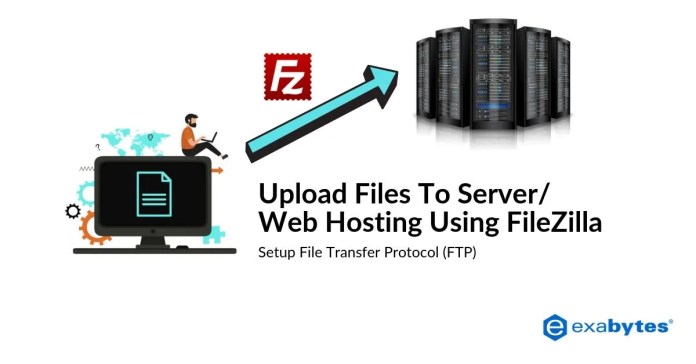
Once you download it, start the file and follow the setup instructions until the application is successfully installed.
Finally, start FileZilla.
Steps To Setup Filezilla
Step 1. To set up FTP (File Transfer Protocol), ready with your client-server login details.
Step 2. Once installed, launch the program and the following screen should appear.
Next, click on the first left icon, namely Site Manager.
Step 3. Rename “New Site” to your preferred name such as yourdomain.com. Then fill out the connection details and click “OK” to save the settings.
Host: ftp.yourdomain.com or IP Address (Your received IP / domain name) Port: 21 Login type: Normal Username: FTP Username (Your received login details) Password: FTP Password (Your received login details)
Step 4. Go back to the main screen.
Click on the small arrow at your right (next to “Site Manager”) and select the name that was just created in the previous step.
Step 5. A connection is now established. You will see the server files on your right and the local files on your left.
t this point, you have successfully connected to the server.
You may drag and drop, double click or right click on them to transfer the files between two locations.
Tips:
For Linux users, upload your website files to “public_html” folder.
For Windows users, upload your website files to “wwwroot” folder.
WordPress has been around in the past decade and is best known for its practical and highly functional features.
Initially only popular among bloggers, today, it has turned into one of the most wanted Content Management Software (CMS) for non-blogging websites because it is user-friendly and easily manageable.
Adding new content or even rich multimedia content to your website is a breeze.
Here are a few simple steps to get you started by first installing WordPress in your cPanel through Softaculous.
7 Steps to Setup WordPress in cPanel
Step 1
After logging into your cPanel account, you will see a list of available options.
Under ‘Software/Services’, select Softaculous to go to various Installation preferences.
Step 2
When you see the Softaculous site, you’ll usually see the WordPress icon displayed under ‘Top Scripts’.
If you cannot find the WordPress icon here, search for it at the Left Panel under ‘Blogs’.
Step 3
Selecting the WordPress Icon in Step 2 will direct you to the Installation page, which displays the details of the current WordPress version and the latest change log.
You can explore by going through ‘Features’ or ‘Demos’ on the top navigation bar which display more in-depth information and hands-on experience regarding the app.
To go straight to the installation, simply click the Install button to begin the Installation process.
Step 4 (a)
Next, a series of empty fields will appear.
Fill out all the necessary information.
Initially, you can leave “Choose Protocol”, “In Directory”, “Database Name” and “Database Settings” as Defaults, unless it involves Technical Modifications.
The “Choose Domain” section allows you to choose the specific domain for this WordPress App.
For starters, you’ll be only to choose one domain in the list.
Extras: You can also create Sub-domains such as [email protected], and WordPress can have it pointed to the sub-domain when you select it.
Step 4 (b)
As you move forward, you’ll see ‘Site Settings’.
Modify the Name and Description to suit the characteristics of your website.
(For example, go for ‘MyCar’ if your website is about cars).
Next, proceed to ‘Admin Account’.
Use the Password Generator (Key Icon) to generate a Safe-level Password.
You can also select your favourite language at ‘Choose Language’.
Step 4 (c)
Limit the Login Attempts if you wish to reduce the chances of having Malicious Attacks on your website (i.e. Brute Force).
Adjust the ‘Advanced Options’ such as Auto Upgrade or Backups.
However, it’s recommended to enable them for the safety of your website.
Step 4 (d)
Eventually, you’ll get to the ‘Theme’ section which has a series of awesome templates.
The selection is wide and it ranges from Modern to Retro designs.
Choose the One which best suits your liking.
The most important part is ‘Email Installation Details’.
Make sure you enter your email address right as all the Installation details such as URLs and passwords will be sent to this email.
Step 5
A confirmation indicating that the installation is completed will appear.
Two URLs will be given; one for Admin Access and another one for the website or your visitors.
Step 6
The Admin Access is for your WordPress Login page.
You must key in the Username and Password in order to proceed.
Step 7
You’ll then be brought to the ‘Dashboard’ of WordPress, where you can manage your content or add-in additional plug-ins for better user experience.
Exabytes would like to take this opportunity to express its deepest gratitude to you for believing in our products and services, and continuing to renew them with us again.
It is such an honor to have you as one of our loyal customers.
As a token of appreciation, we wish to extend to you a SPECIAL PROMOTION for Domains and Hosting RENEWALS!
CRAZY RENEWAL OFFERS:
Renew .MY Domain NOW for RM79.90 and .COM.MY / .NET.MY / .ORG.MY Domain for RM49.90 each ONLY!
Renew EBiz Gold Unlimited hosting for 2 years at RM798, and EBiz Plus for 2 years at RM438 ONLY!